lockout.live
The main version can be found at lockout.live.
This version gets updated infrequently, but is usually the most “stable” version.
There are two versions of Lockout.Live:
lockout.live
The main version can be found at lockout.live.
This version gets updated infrequently, but is usually the most “stable” version.
beta.lockout.live
The beta version can be found at beta.lockout.live.
This version is updated more frequently, and has the latest features, games and more.
From the home page, choose from the following options and click the Generate Board button to get started with a new bingo board for your game of choice!
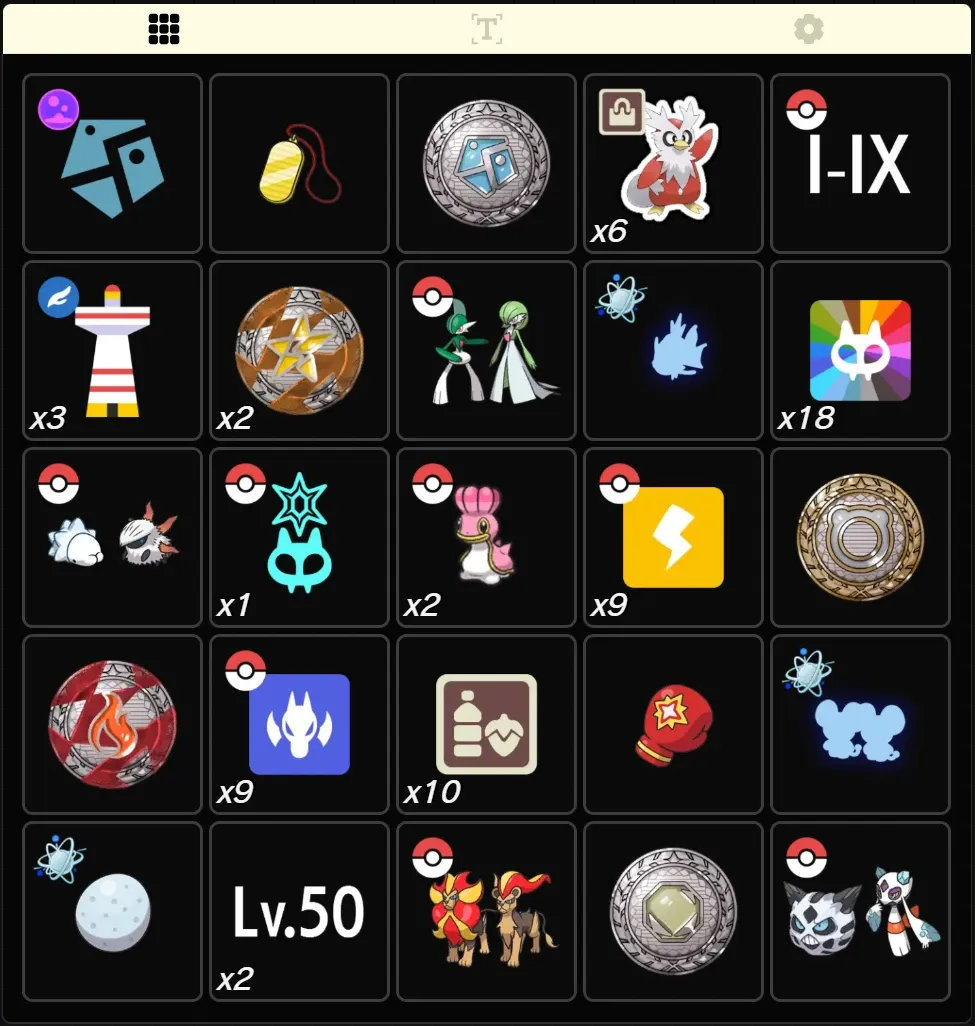
The game you want to play. This changes the available objective set options.
Which objective set you want to use.
Most games may only have the one default set, but some games may have multiple sets such as streamlined (a quicker version of the default set) or beginner (an easier version of the default set).
The game mode setting, typically the size of the board or the time limit for the game mode.
The seed you want to use for the board.
If left blank, a random seed will be automatically generated for you.
Seeds can sometimes have refresh numbers. This indicates how many times the seed was refreshed to create the next new board.
For example, the seed MV2XRO:4 means the seed MV2XRO was refreshed 4 times.
You can paste in a seed with a refresh number or you can type it in manually (e.g. seed:refresh). After focusing away from the input or clicking the Generate Board button, the seed and refresh count will be applied.
What game mode you want to play. See Game Modes for more information.
Additionally, you can toggle to show the advanced options and modifiers.
Which modifiers you want to use for the board. See Game Modifiers for more information.
A password to protect the board.
When sharing a link to a password protected board, other players will be prompted to enter the password to join the game.
The server the game will use to host the game.
Any other players joining the game will use the same server (but they do not need to change their own server setting).
This mainly impacts the latency of the game updates between players, such as clicking off goals.
You can invite players to your game by going to the Settings tab and clicking the Copy Invite Link button.
Alternatively, you can use the keyboard shortcut C to copy the invite link to your clipboard.
The board is split into 3 tabs:
Image Tab - The game board with the objectives displayed as images.Text Tab - The game board with the objectives displayed as text.Settings Tab - The settings for the game board & debug information.Hovering over an objective will show a tooltip for that goal.
If you hover over a goal while on the Image tab, you will see the objective goal text shown.
If you hover over a goal while on the Text tab, you will see some (optional) additional help text for the goal.
To mark off a goal as completed, left click on the goal. Certain modes (like Rush) may require you to hold the left click to fully complete marking off the goal.
Some modes will also let you mark off a goal by pressing Space while hovering over it with your cursor.
select a goal to indicate the goals you plan on completing. This gives the goal an inset border of your selected colour.
To select a goal:
right click on the goal.right click and drag in a straight line across several goals.right click on the edge “Guide Lines” to select a line of goals (as long as they are enabled in the app settings).Selected goals are only visible to you and are not shown to other players. You can, however, share this info across multiple devices using the Linked Devices feature.
target a goal to indicate that you are currently working on it. This gives it a pulsating “target” overlay.
To target a goal:
shift + left click on the goal.Targeted goals are only visible to you and are not shown to other players. You can, however, share this info across multiple devices using the Linked Devices feature.
lowkey a goal to hide the goals you’re not interested in. This makes it appear significantly more muted.
To lowkey a goal:
shift + right click on the goal.shift + right click and drag in a straight line across several goals.shift + right click on the edge “Guide Lines” to lowkey a line of goals (as long as they are enabled in the app settings).Lowkey goals are only visible to you and are not shown to other players. You can, however, share this info across multiple devices using the Linked Devices feature.
Firefox has a “feature” where shift + right click will always open the context menu, no matter what.
To disable this functionality
Go to about:config in your browser, by entering it in the address bar.
Accept the warning.
Search for dom.event.contextmenu.shift_suppresses_event
Set it to false
Profit!
You can mark off progress on a goal by scrolling up and down with your mouse wheel or using the up and down arrow keys. This tracks the progress of the goal in the top right corner.
You can alternatively increase or decrease the progress in steps of 5 by holding the Shift key.
Progress is only visible to you and is not shown to other players. You can, however, share this info across multiple devices using the Linked Devices feature.
Here’s an example of all the interactions in action.
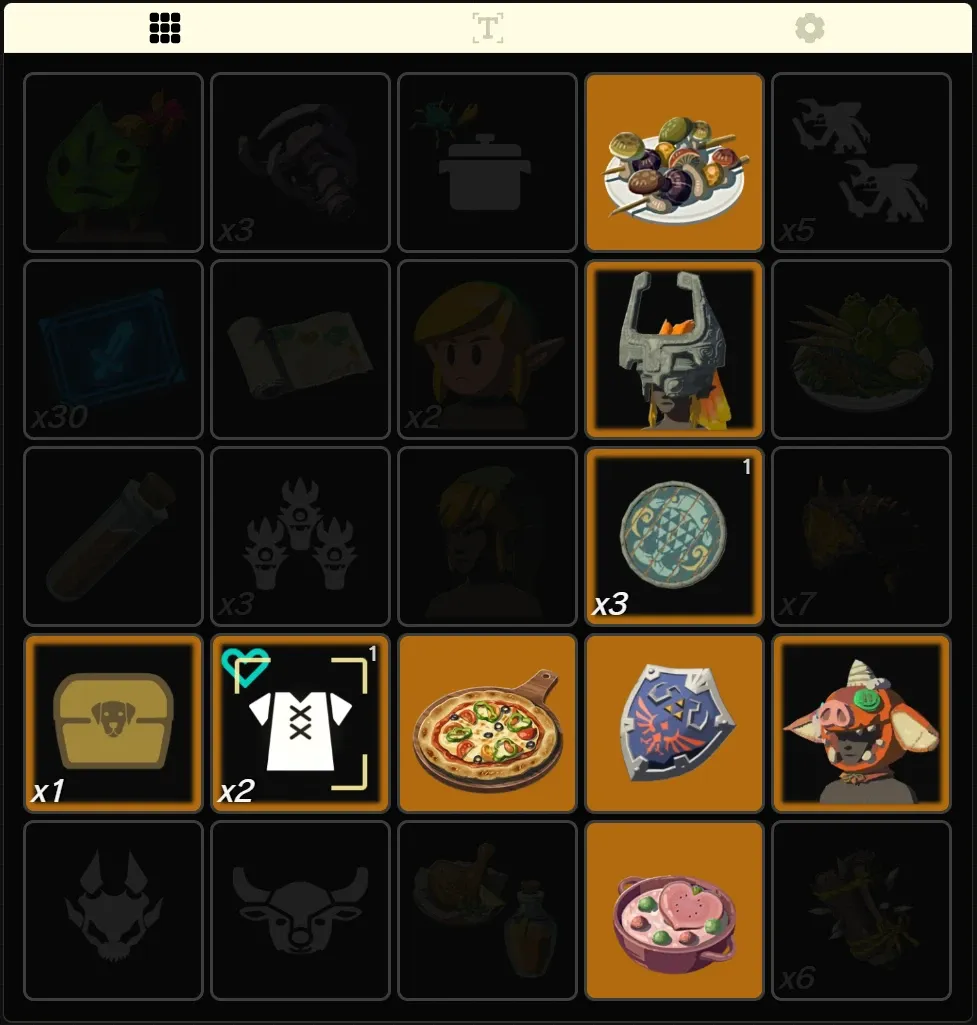
This shows:
The scorebar is displayed below the game board. Initially, it will show just an outline until a player has completed a goal.
The scorebar shows different scores depending on the game mode. You can cycle through available score types for the game mode by clicking on the scorebar.
The timer can be paused and resumed by clicking on it.
Going to the Settings tab and clicking Manager Timer will show a dialog with the options to:
You can also middle click on the timer to bring up the same dialog.