Playing the Game
The board is split into 3 tabs:
Image Tab: The game board with the objectives displayed as images.Text Tab: The game board with the objectives displayed as text.Settings Tab: The settings for the game board & debug information.
Tooltips
Section titled “Tooltips”Hovering over an objective will show a tooltip for that goal.
If you hover over a goal while on the Image tab, you will see the objective goal text shown.
If you hover over a goal while on the Text tab, you will see some (optional) additional help text for the goal.
Board Interactions
Section titled “Board Interactions”Completing Goals
Section titled “Completing Goals”To mark off a goal as completed, left click on the goal. Certain modes (like Rush) may require you to hold the left click to fully complete marking off the goal.
Some modes will also let you mark off a goal by pressing Space while hovering over it with your cursor.
Selecting Goals
Section titled “Selecting Goals”select a goal to indicate the goals you plan on completing. This gives the goal an inset border of your selected colour.
To select a goal:
right clickon the goal.right clickand drag in a straight line across several goals.right clickon the edge “Edge Selectors” to select a line of goals (as long as they are enabled in the app settings).
Selected goals are only visible to you and are not shown to other players. You can, however, share this info across multiple devices using the Linked Devices feature.
Targeting Goals
Section titled “Targeting Goals”target a goal to indicate that you are currently working on it. This gives it a pulsating “target” overlay.
To target a goal:
shift + left clickon the goal.
Targeted goals are only visible to you and are not shown to other players. You can, however, share this info across multiple devices using the Linked Devices feature.
Lowkey Goals
Section titled “Lowkey Goals”lowkey a goal to hide the goals you’re not interested in. This makes it appear significantly more muted.
To lowkey a goal:
shift + right clickon the goal.shift + right clickand drag in a straight line across several goals.shift + right clickon the edge “Edge Selectors” to lowkey a line of goals (as long as they are enabled in the app settings).
Lowkey goals are only visible to you and are not shown to other players. You can, however, share this info across multiple devices using the Linked Devices feature.
Firefox Workaround
Section titled “Firefox Workaround”Firefox always opens the context menu on shift + right click, which interferes with lowkeying goals. To fix this:
-
Go to
about:configin your address bar. -
Accept the warning.
-
Search for
dom.event.contextmenu.shift_suppresses_event -
Set it to
false
Marking Progress
Section titled “Marking Progress”You can mark off progress on a goal by scrolling up and down with your mouse wheel or using the up and down arrow keys. This tracks the progress of the goal in the top right corner.
You can alternatively increase or decrease the progress in steps of 5 by holding the Shift key.
Progress is only visible to you and is not shown to other players. You can, however, share this info across multiple devices using the Linked Devices feature.
Example Interactions
Section titled “Example Interactions”Here’s an example of all the interactions in action.
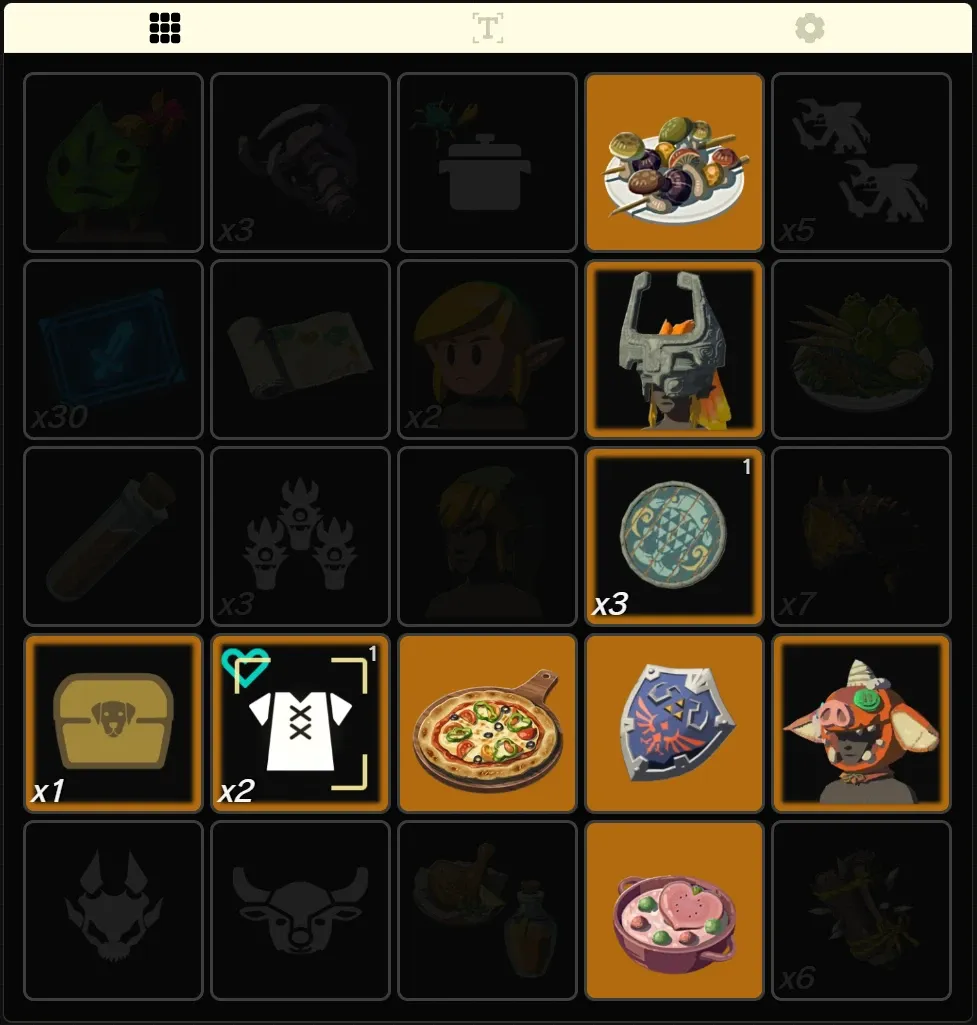
This shows:
- Column 4 and Row 4 being selected
- 4 completed goals
- 1 targeted goal
- 2 goals with progress
- The rest of the goals lowkeyed
Player Toolbar
Section titled “Player Toolbar”The player toolbar is a floating panel that gives you quick access to goal actions, board helpers, and in-game settings. You can open it by hovering over it on desktop, or tapping it on mobile. Press Ctrl + Space to toggle it open and closed.
The toolbar can be pinned open so it stays visible while you play. On mobile, you can drag it to adjust the panel height.
Goal Actions
Section titled “Goal Actions”The goal actions section lets you switch which action your clicks perform on the board. This is an alternative to using the mouse/keyboard shortcuts described above. The available actions are:
| Action | Effect |
|---|---|
| Select | Toggle selected state (same as right click) |
| Target | Toggle targeted state (same as shift + left click) |
| Lowkey | Toggle lowkey state (same as shift + right click) |
| Progress + | Increase progress (same as scroll up) |
| Progress - | Decrease progress (same as scroll down) |
| Clear | Clear all properties on a goal (same as middle click) |
When an action is active, the section highlights to remind you. Click the same action again to deactivate it and return to normal click behaviour.
Board Helpers
Section titled “Board Helpers”Quick bulk operations for managing your board state:
| Helper | Shortcut | Effect |
|---|---|---|
| Focus (Auto Lowkey) | F |
Lowkey any goal that isn’t selected, targeted, or has progress |
| Reset Selected | S |
Clear all selected goals |
| Reset Targeted | T |
Clear all targeted goals |
| Reset Lowkey | L |
Clear all lowkeyed goals |
| Reset All | A |
Clear all properties from all goals |
Scorebar Setting
Section titled “Scorebar Setting”You can change which score type the scorebar displays from within the toolbar. The available types depend on the game mode (Lines, Goals, Height, Shinies, Blanks). You can also cycle through them by clicking the scorebar itself.
Auto-Lock Timer
Section titled “Auto-Lock Timer”When viewing a score type that supports it, you can set a threshold to automatically lock the timer. For example, setting it to “3 Lines” will freeze the timer as soon as you complete 3 lines. This is useful for leaderboard submissions where you need a precise time at a specific milestone.
The auto-lock option only appears for score types that make sense as thresholds (not Height, for example).
Keyboard Shortcuts
Section titled “Keyboard Shortcuts”A toggle to enable or disable keyboard shortcuts globally. When disabled, none of the shortcut keys (S, T, L, F, A, H, C, etc.) will respond.
Spectator Toolbar
Section titled “Spectator Toolbar”If you’re watching a game as a spectator, you’ll see a simplified toolbar instead of the player toolbar.
Player View
Section titled “Player View”A row of colour chips lets you switch whose perspective you’re viewing. Click a colour to see the board from that player’s point of view, including their completed goals and score.
Visibility (Fog of War modes)
Section titled “Visibility (Fog of War modes)”In modes with fog of war (Ascend, Summit), you can toggle View All Goals to bypass the fog and see every objective on the board. While this is active, the player view colour chips are disabled since fog of war is per-player.
Auto-Follow
Section titled “Auto-Follow”When enabled, the spectator view automatically switches to whichever player most recently completed a goal. This keeps the view focused on the action. Auto-follow is disabled when View All Goals is active in fog of war modes.
Objective History
Section titled “Objective History”Both the player and spectator toolbars give access to Objective History (H shortcut), which shows a timeline of all goal completions across all players.
Scorebar
Section titled “Scorebar”The scorebar is displayed below the game board. Initially, it will show just an outline until a player has completed a goal.
The scorebar shows different scores depending on the game mode. You can cycle through available score types for the game mode by clicking on the scorebar.
The timer can be paused and resumed by clicking on it.
Going to the Settings tab and clicking Manage Timer (or opening it from the player toolbar) will show a dialog with the options to:
- Reset the timer back to 00:00:00
- Lock the time to the current time (so no more goals can be completed)
You can also middle click on the timer to bring up the same dialog.